RCon command guide
View players, moderate the WARDOGS server and send messages through the WAI Discord bot. Enter a slash command in Discord and complete the fields shown by the bot.
Player information
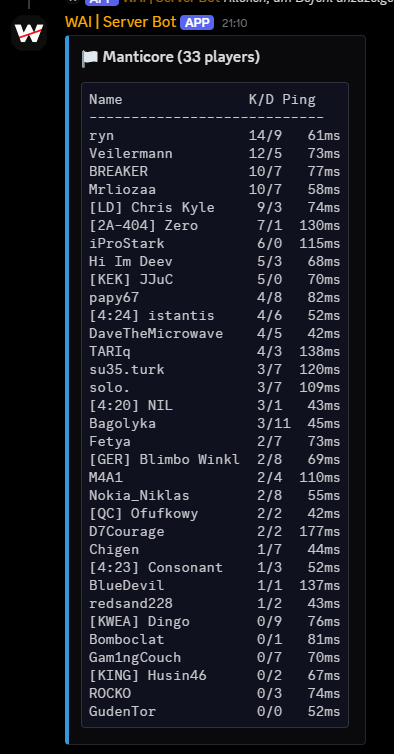
/rcon_players
Shows all connected players grouped by faction. The player list displays names, kills and deaths (K/D), and ping.
Player information
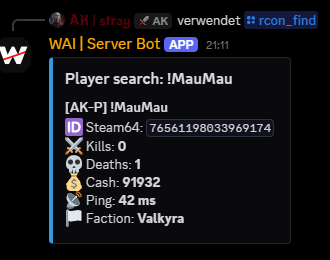
/rcon_find
Search for a player by name or Steam ID. Searching by name also shows the player’s Steam ID. The result includes player statistics.
Player management
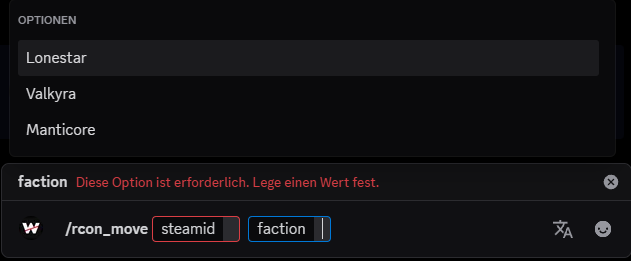
/rcon_move
Select a player and the faction you want to move them to.
- steamid
- The player’s Steam ID.
- faction
- Choose the target faction from the dropdown menu.
Moderation
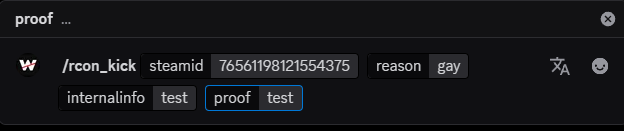
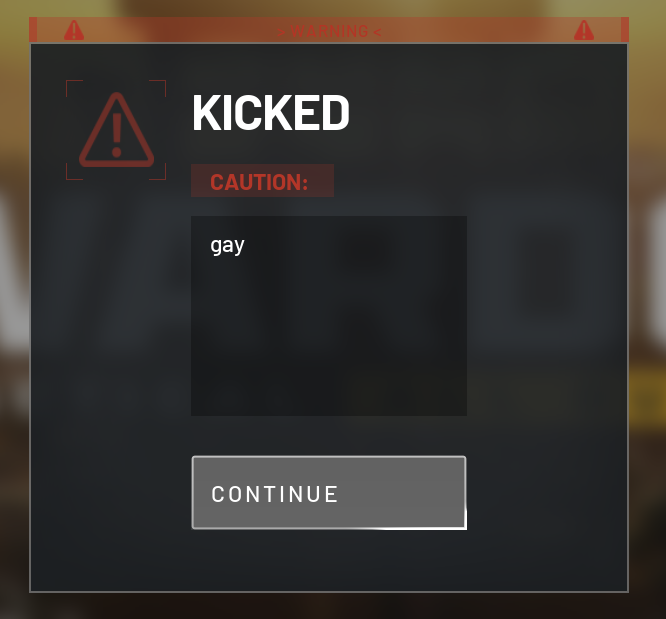
/rcon_kick
Kicks a player from the server. Complete the following fields.
- steamid
- The player’s Steam ID.
- reason
- The reason for the kick.
- internalinfo
- Additional internal information explaining the kick.
- proof
- Evidence supporting the kick.
Moderation
/rcon_ban
Bans a player from the server. Use the same fields as for /rcon_kick: steamid, reason, internalinfo and proof.
Communication
/rcon_message
Sends a message to a selected player.
- steamid
- The recipient’s Steam ID.
- message
- The text you want to send.
Communication
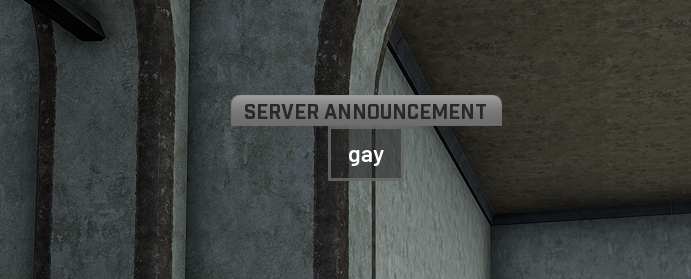
/rcon_broadcast
Sends a message to the whole server.
- message
- The announcement text.